OCHA BDU skills for Claude
Adds OCHA brand knowledge to Claude — colours, logo rules, chart and map standards, house writing style, logo production, the full video pipeline, and how to name and organise files.
Once installed, you just ask Claude for the work and it follows OCHA standards automatically. You don't have to explain them every time. And they stay current — we improve them regularly, and your copy updates from our repository rather than needing a reinstall.
What you get
| Skill | What it helps with |
|---|---|
ocha-visual-identity | Brand colours, fonts, logo rules, clear space, the OCHA design system |
ocha-dataviz | Which chart to use, and how OCHA charts should look |
ocha-mapping | OCHA map standards — boundaries, symbols, disclaimers |
humanitarian-icons | The 389 OCHA Humanitarian Icons |
ocha-editorial-style | OCHA house style — numbers, dates, currency, capitalisation, acronyms |
ocha-design | Loads visual identity + charts + maps together |
ocha-logo-production | Building logo packages from Illustrator — languages, variants, verified exports |
ocha-video | Everything video — cutting, subtitles, lower third, logo ending, packaging |
ocha-files-and-folders | Where files go, how to name them, draft versions, cleaning up at the end |
ocha-animation | Smooth motion for animated graphics and data films — entrances, exits, transitions, timing, rendering to video |
These instructions are for the Claude Code desktop app (Mac or Windows). Not for Terminal.
⚠️ Before you start — you need a paid Claude plan
Claude Code is not available on the free plan. You need Claude Pro (or higher — Max, Team, Enterprise). Without it, the Claude Code tab won't be there and none of the steps below will work.
Setup takes about 5 minutes. Follow the steps in order.
Step 1 — Install Claude on your computer
Download it here: https://claude.ai/download
Install it like any other app, then open it and sign in.
One app, Mac or Windows. Claude Code comes with it — there's nothing extra to download. If you already have the Claude app, skip to Step 2.
Step 2 — Open Claude Code
In the Claude app, click the Claude Code icon in the left sidebar.
This matters. The Claude app has several tabs — Claude, Claude Code and Cowork. These skills only work on the Claude Code tab.
It asks you to choose a folder
A window opens asking you to pick a folder. Pick Desktop and click Open.
This is not about the skills. Claude Code can't open at all without a folder — it's its own one-time setup. It just happens to appear now because this is your first time using it.
- Nothing is saved into that folder. The skills install inside Claude itself.
- Picking
Desktophere changes nothing and breaks nothing.
Why Claude Code wants a folder at all: it works on files — it makes charts, edits videos, writes documents. The folder tells it where to look for your files and where to save what it makes. That only starts to matter once you're doing real work, and you pick the right folder then (see below).
Say yes to the permission prompts
The first time you use Claude Code, it asks permission before doing things on your computer — reading a file, running something. Approve these when prompted, or it won't be able to do the work.
Tired of being asked every time? At the bottom left there's a Bypass permissions option. It stops the prompts and lets Claude act without checking each time — faster, but you lose that checkpoint, so only turn it on for work you trust. Approving prompts one by one is the safer default.
Step 3 — Add the OCHA skills
You do this inside the Claude app, by clicking. Nothing to type into Terminal, and nothing to paste into the chat.

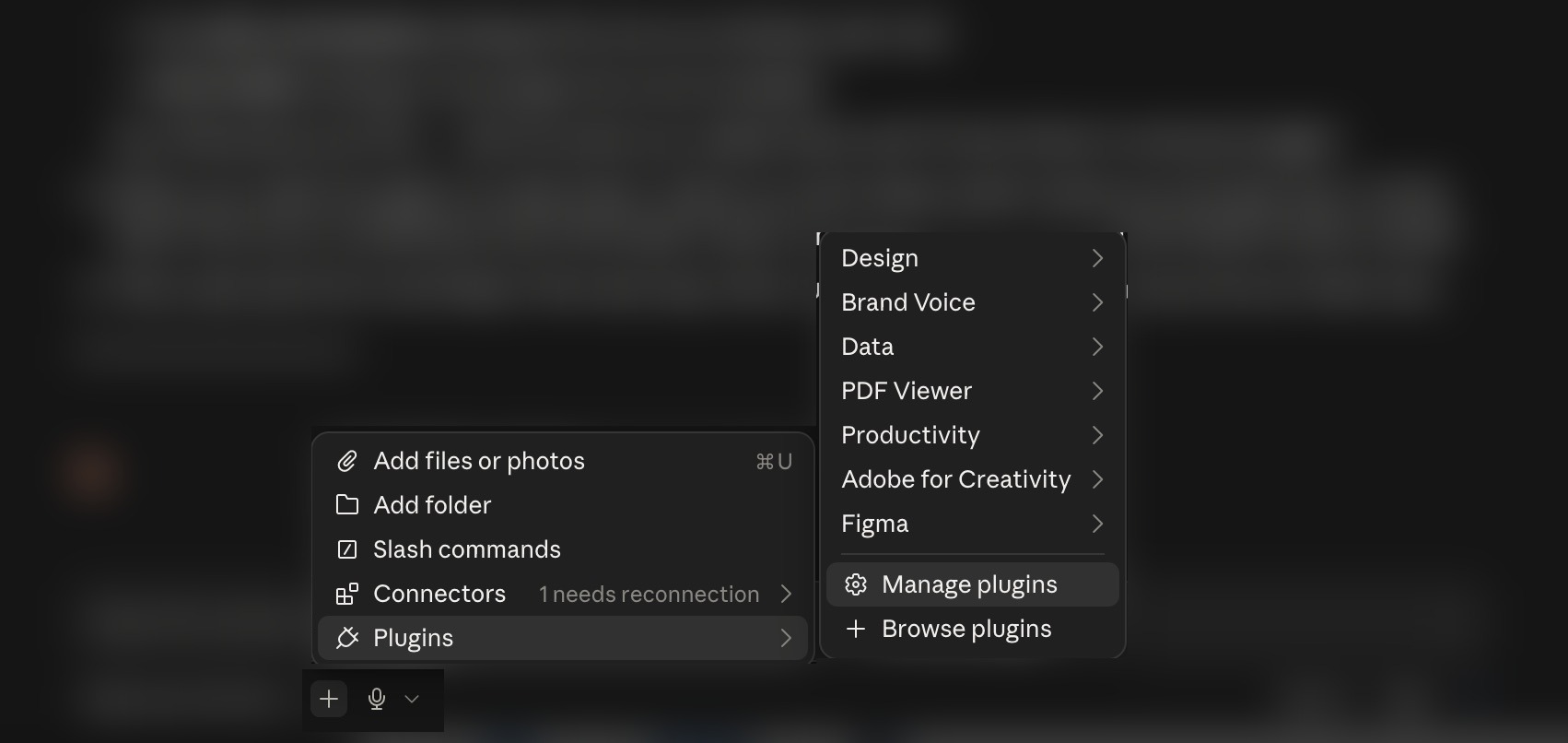
- In the Claude Code tab, click the + button next to the message box
- Choose Plugins
- Choose Manage plugins
- Click Add at the top right
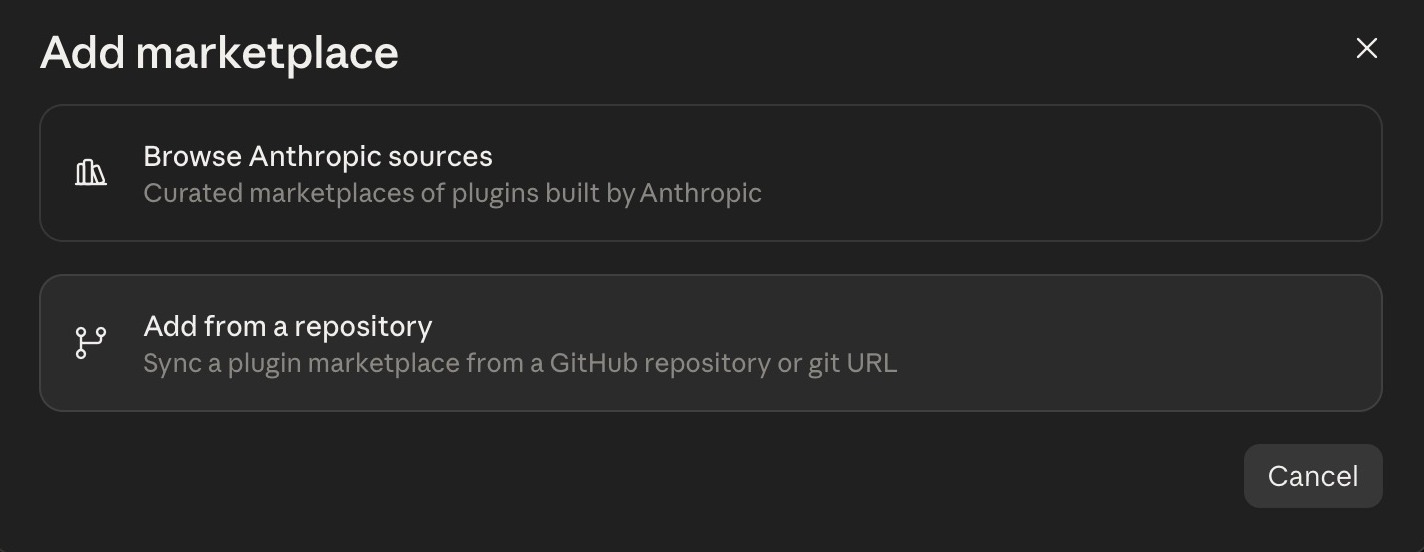
- Choose Add marketplace
- Choose Add from a repository

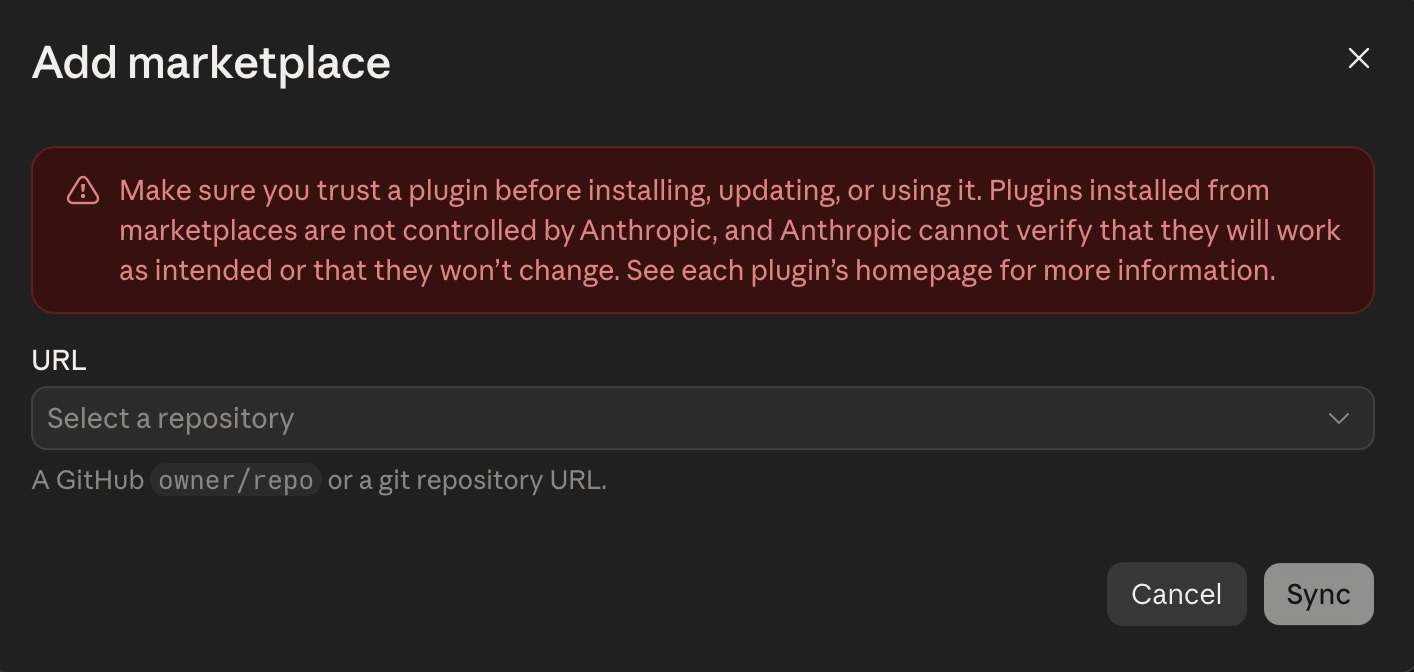
- Paste this into the URL box, exactly:
UN-OCHA/ocha_claude_skills_BDU
- Click Sync

You will see a red warning. This is normal — keep going.
It says Anthropic can't verify plugins that don't come from them. It appears for every plugin that isn't Anthropic's own, including this one, and it is not a sign that anything is wrong.
These skills are OCHA's. The address you just pasted is the UN-OCHA organisation on GitHub, it is maintained by the Brand and Design Unit, and nobody outside BDU can change what's in it. Questions: [email protected].
OCHA BDU now appears in the plugin list. Install it, and you're done.
Why clicking and not a pasted message? Earlier versions of these instructions asked you to paste a message that ran commands. Those commands come from a separate developer tool that the Claude app doesn't include, so on most laptops they simply failed. The buttons above are built into the app and work on every machine.
Only if you installed these skills the old way
If you added the skills by hand before September 2026, you now have two copies of each and Claude will see duplicates. Paste this into the chat box after the plugin is installed and showing up:
I have just installed the OCHA BDU plugin. Please confirm it is installed and that you can see its skills. Only if it is, delete these folders from my
~/.claude/skills/, because they are old manual copies the plugin now replaces: ocha-visual-identity, ocha-dataviz, ocha-mapping, humanitarian-icons, ocha-editorial-style, ocha-design, ocha-video, ocha-logo-production. Do not touch any other folder there. If the plugin is not installed, stop and tell me — do not delete anything.
Brand new to these skills? Skip this — there's nothing to clean up.
Step 4 — Quit Claude and open it again
This step is required. The plugin loads when Claude starts.
Quit Claude completely, then open it again and go back to the Claude Code tab.
Step 5 — Check it worked
Type this in the Claude Code chat box, like a normal question:
what OCHA skills do I have now?
Claude should list ten skills.
Step 6 — Switch on automatic updates
Don't skip this one. In the Claude desktop app, plugins from outside Anthropic don't update by themselves until you switch it on. You do it once per computer.
When you did Step 5, Claude most likely also asked you something like: “The OCHA BDU plugin can't update its skills on this computer yet. Shall I switch that on?”
Say yes. Then quit Claude and open it again. That's it — you're finished. 🎉
If Claude didn't ask, paste this into the chat box instead, then quit Claude and open it again:
Please turn on automatic updates for the OCHA BDU skills plugin on this computer. In my Claude settings file (~/.claude/settings.json on a Mac, %USERPROFILE%\.claude\settings.json on Windows; create it if missing), keep everything already there and add:
1. Under "extraKnownMarketplaces": "ocha-bdu": {"source": {"source": "github", "repo": "UN-OCHA/ocha_claude_skills_BDU"}, "autoUpdate": true}
2. Under "env": "FORCE_AUTOUPDATE_PLUGINS": "1"
Check the file is still valid JSON and tell me when it's done.
How updates work
We improve these skills regularly. Once automatic updates are on (Step 6), you don't have to do anything:
- A few minutes after you start a session, Claude checks our repository in the background and downloads anything new.
- The session you have open keeps the version it started with. Your next session has the new one.
Think your skills are out of date? Tell Claude:
Update the OCHA skills with the latest version from the repository.
Then start a new session.
Use more than one computer? Do Step 6 on each one.
If you're ever unsure, ask us: [email protected].
How to use it
Nothing to remember. Just ask for what you need:
"Make a bar chart of funding by sector, OCHA style" "What are the OCHA brand colours?" "How much clear space does the OCHA logo need?" "Check this paragraph against our house style" "Add subtitles and the OCHA ending to this video"
Claude picks the right skill by itself.
🎬 If you make videos
On a Mac, there is nothing for you to do here. Video work runs on a separate program called OCHA QuickVid, and the first time you ask Claude for a video it installs it for you. It will tell you it's doing it. Expect about 10 minutes that first time — no password, nothing to download yourself. After that it's instant and never happens again.
Everything runs on your own computer. Your footage is never uploaded anywhere.
On Windows
Windows needs one manual step. Open this page in Chrome — Safari and Edge don't play nicely with it:
https://un-ocha.github.io/quickvid_BDU/
Download the installer it offers and double-click it.
Windows shows "Windows protected your PC" → More info → Run anyway. Normal for any internet download.
If video stops working
An old copy of QuickVid won't update itself properly, and restarting your computer won't fix it. On a Mac, just tell Claude "QuickVid isn't working, please repair it" — it re-runs the installer, which repairs it in place and keeps your setup.
On Windows, delete the OCHA QuickVid app, go back to the page above, scroll to the bottom → Help & reinstall, and install it again.
🧠 What model should I use?
Start with Sonnet. It's the default, and the right one for updates and changes to work that already exists. If you're not happy with the result, switch to Opus.
| What you're doing | Model |
|---|---|
| Updates and changes: a new figure, a new size, a re-export | Sonnet |
| Branding a finished clip, charts, maps, icons, brand questions | Sonnet |
| Starting a new project that needs creativity | Opus |
| Sonnet's result isn't good enough | Opus |
| Choosing which 60 seconds to cut from a long briefing | Opus |
| Translating subtitles | Opus |
| Something broke and you need it debugged | Opus |
Fable: only occasionally. It uses far more of your allowance.
You can switch models in the middle of a session — the work carries over.
The one that matters: if you're cutting a principal's words, use Opus. A weaker model's mistake there isn't a broken file — it's a clip that misrepresents what someone said.
If something doesn't work
"I installed them but Claude doesn't know about them." You need to quit Claude and reopen it (Step 4). The plugin loads at startup.
"Claude lists fewer than ten skills." Your copy is out of date. Tell Claude “Update the OCHA skills with the latest version from the repository”, then quit Claude and open it again. If you installed the skills by hand before September 2026, also do Step 3 once and the clean-up message underneath it.
"My skills never seem to get the latest changes." Automatic updates aren't on for this computer. Do Step 6.
"QuickVid keeps asking me to restart and never works." You have an old version, and restarting won't fix it. On a Mac, tell Claude "QuickVid isn't working, please repair it". On Windows, delete the app and reinstall from Help & reinstall at the bottom of the QuickVid page.
"Claude says it can't find the QuickVid engine." On a Mac it should offer to install it — just ask for the video again. On Windows, do the install from the QuickVid page (see the video section above
…(truncated)…